

Hard drives do not send a warning letter. They work fine on Tuesday and they are a paperweight on Wednesday. The photos on that drive, the ones from a first birthday, an anniversary, the trip you took the year everything changed, have no spare copy waiting anywhere unless somebody set one up on purpose. Usually nobody did.
Here is the encouraging part. A home setup that genuinely protects those files takes about an hour to build, costs less per month than a streaming service, and then runs on its own for years. You do not need to be technical. You make three decisions and then leave it alone.
Cloud Sync Is Not a Backup, and Apple Says So Out Loud
Most people assume their photos are safe because the phone uploads them somewhere. That belief is half true. Sync is excellent at making one library appear on every screen you own. It was never meant to be a safety net, and the companies that build it say so.
Apple’s support documentation for iCloud Photos states that “changes you make on one device change on your other devices too,” and that when you remove photos “they’re deleted everywhere that you use iCloud Photos.” The same page tells users plainly that photos in iCloud Photos “are not duplicated in your iCloud backup, so keep backup copies of your library.” That is the vendor telling you to keep a real backup.
- Deletion travels. A toddler with your unlocked phone, a cleanup session where you moved too fast, a relative with shared access. One delete removes it everywhere. Apple provides a 30 day window in Recently Deleted, after which Apple says the content is “deleted permanently and you can’t get it back.”
- Account problems travel too. If you get locked out, or somebody else gets in, every copy sits behind that one door.
- Damage travels. If a file gets scrambled by failing hardware, the scrambled version syncs upward. Sync is obedient, not judgmental.
- None of this makes sync bad. Keep it on. It just needs a partner.
The Home Version of the 3-2-1 Rule
The rule the whole industry uses is simple enough to explain at a kitchen table. The Cybersecurity and Infrastructure Security Agency describes it as three copies of important files, on two different types of storage, with one copy kept off site and away from your location. Translated for a house instead of an office:
- Copy one is the working copy. The photos on your phone and computer. The one you use, and the one most likely to break.
- Copy two is the cloud. Whatever photo service you already pay for. Different storage, different building, no effort after setup.
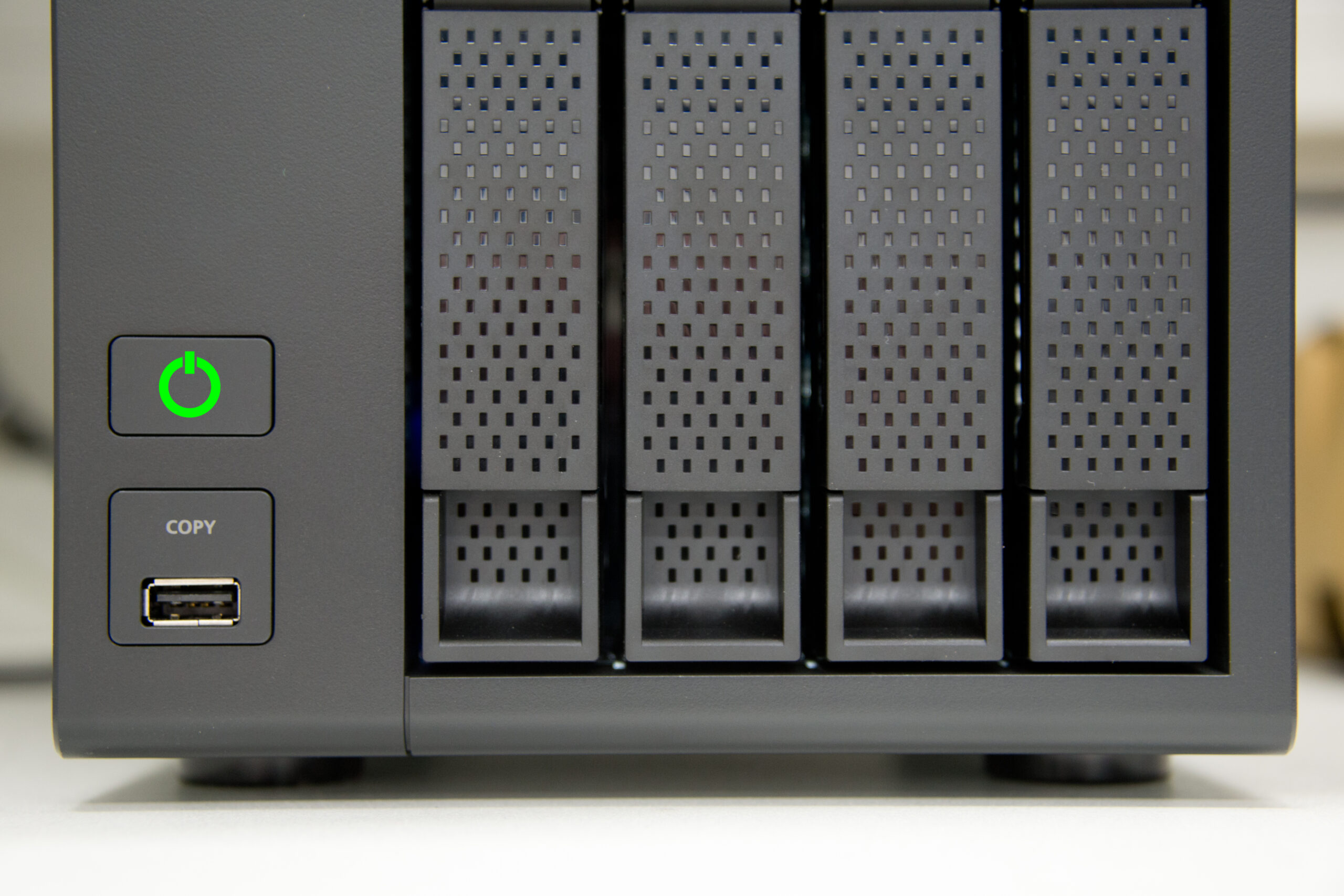
- Copy three is a drive you can hold. An external hard drive that lives somewhere other than next to the computer. A desk drawer at work, a parent’s house, a small fireproof box. Off site matters because fire, flood, and theft rarely take just one device.
Setting It Up Once So It Runs Itself
Three copies, two kinds of storage, one somewhere else. The trick is a chain where every link is automatic. Phone feeds cloud, cloud feeds computer, computer feeds drive. Do it in this order.
- Turn on photo sync on every phone in the house. It lives in the settings for your photo app or your account. If you are near the free storage limit, pay for the next tier. A few dollars a month removes the most common reason people lose photos: a full account that quietly stopped uploading months ago.
- Pull the cloud library down to a real computer. Almost nobody does this, and it is the step that turns sync into an actual second copy. In your photo or cloud app on a laptop or desktop, find the setting that keeps original full quality files on the device rather than previews only. Every major service has it, under slightly different wording.
- Plug in an external drive and turn on the backup tool built into your computer. Both major desktop operating systems include one that copies your files to an attached drive on a schedule. Look in system settings under backup. Buy a drive at least twice the size of what you are protecting.
- Get one copy out of the building. Either buy two drives and swap them every few months with one kept elsewhere, or add an online backup service that uploads in the background. The swap is cheaper. The service is more reliable, because it does not rely on you remembering.
- Protect the account holding all of it. Your library is only as safe as the login guarding it. Use a long unique password and turn on a second step at sign in. Our explainer on YubiKeys, passkeys, and standard multifactor authentication covers those options in plain language.
The Shoebox of Old Drives and DVDs
Almost every house has one. Burned discs, dusty external drives, a laptop nobody has powered on in a decade, three old phones, a camera memory card. None of it is backed up and all of it is slowly going unreadable.
- Do it in one afternoon, badly. Do not sort. Do not curate. Copy everything off every old device into one folder called Old Media, a subfolder per source. Sorting can happen later or never. Copying is the part with a deadline.
- Buy the cheap adapter. An external optical drive and a USB drive dock read nearly anything.
- Old phones still hold photos. Charge each one, unlock it, copy the camera roll. Phones that predate reliable cloud sync are often the only home for whole years of a family’s pictures.
- Let the folder join the chain. Once Old Media lives on your computer, your new routine picks it up automatically and it inherits all three copies.
- Retire the originals thoughtfully. Old drives and discs should be destroyed or securely wiped rather than donated. They still hold your files.
The Annual Check That the Restore Actually Works
A backup you have never restored from is a hope, not a plan. The Cybersecurity and Infrastructure Security Agency advises testing the backup procedure to confirm data can be restored fully and partially. Do a small version once a year, on a date you will remember: a birthday, the day you change smoke detector batteries, the first weekend of school.
- Pick a specific old photo from a year you care about, ideally one no longer on your phone.
- Open the external drive and confirm the file is really there, that it opens, and that it is a full sized original instead of a thumbnail.
- Check the date of the last backup. If it says eleven months ago, the chain broke and nothing told you. That is common, and it is the whole reason for the annual check.
- Confirm the off site copy exists. Check the second drive, or sign in to the backup service and look at recent activity.
- Write the date on a sticky note and stick it on the drive.
The Bottom Line
Photos are the one category of personal data with no replacement value. You can reissue a credit card, reset a password, buy another laptop. You cannot go back and re shoot 2009. The setup that protects those files is not complicated, just unglamorous, and it fails quietly when nobody looks.
So do the boring version. Phone syncs to the cloud. Cloud comes down to a computer. Computer copies to a drive kept somewhere else. Once a year, open an old picture and make sure it is really there. That will outlast every device in your house.
If you hit a wall partway through, or you have a drawer of old drives you cannot read, we are glad to point you in the right direction. We do this for businesses across Denton County, and the home version is the same idea, smaller. Contact us today
Sources:
Comments are closed